

Changing your Password (As long as you know what your current one is!)
From home or if you have a laptop instead of School desktop PC:
- Go to the school website
- Click on the person icon in the top right
- Log in with your school username (NOT email) and password
- Click ‘Me’
- Change password in accordance with the requirements.

It can take 30 minutes for your office 365 to sync this password, school desktop PC is instant.
This will not change any other passwords, only for logging in to a school desktop PC, office.com or anything that requires your school log in details.
From a school desktop PC:
Log on to any network PC.
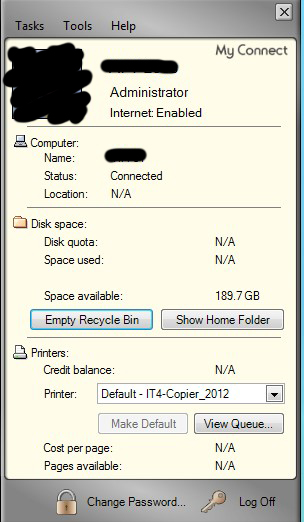
In the bottom right hand corner of the PC next to the clock you will find this icon:  – Double click.
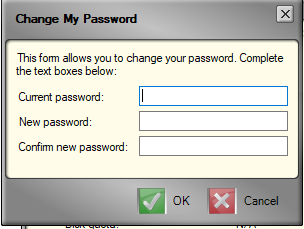
At the bottom of the pop up click ‘Change Password’ and type in your current and new passwords. The password criteria is:
- 3 Separate words
- At least one symbol
- At least one number
- At least 11 Characters
- Cannot include your name, username or khviii
- Cannot be the same as the last 3 passwords you’ve used
It can take 30 minutes for your office 365 to sync this password, school desktop PC is instant.
This will not change any other passwords, only for logging in to a school desktop PC, office.com or anything that requires your school log in details.