

- Go to Office.com and log in with your school account.
- Once you see this screen click ‘install office’ in the top right.
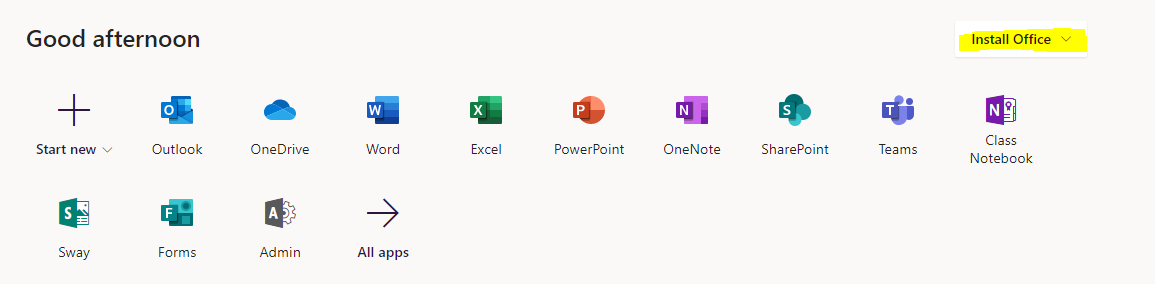
- Install ‘Office 365 apps’
- Save in a location on your PC you will remember and know how to get to.
- Go to that location and double click on the setup.def file.
- It will begin to install. This will take a while so leave it running until it is finished.
If the Install Office button isn’t located where it says in point 2 above, follow these instead.
- Go to Office.com and log in with your school account.
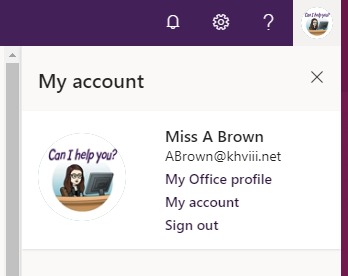
- Once you are logged in, click on the circle in the top right corner with either your initials or profile image shown.
- Click on ‘My Account’
- Click on ‘Install Office’
- Save in a location on your PC you will remember and know how to get to.
- Go to that location and double click on the setup.def file.
- It will begin to install. This will take a while so leave it running until it is finished.