-
- Go to the staff page and log in to your emails.
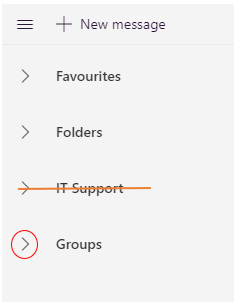
- On the left-hand side you have a list of options including Favourites, Folders and Groups. Click the little arrow next to ‘Groups’.
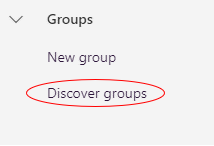
- Under groups there is an option to ‘Discover Groups’.
- Once the ‘Discover Groups’ pop up is on screen type in the ‘Search for Groups’ bar an identifier for the group you’re looking for (year 7, Team etc) and press the enter button on your keyboard.
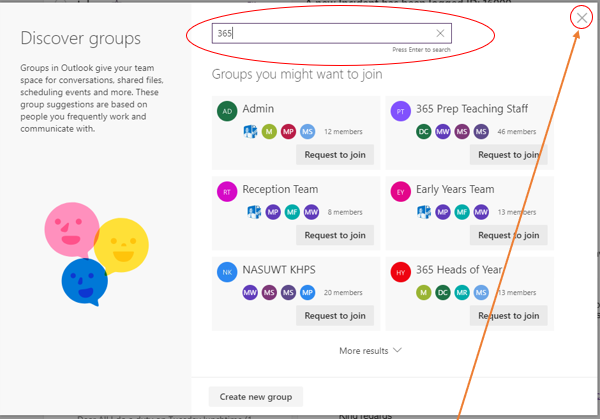
- Click ‘Request to Join’ under the group you wish to join and press the cross at the top of the pop up to close it.
- Go to the staff page and log in to your emails.
Wait for the group owner to accept the request and you will then find the new group on the left-hand side of your email account under ‘Groups’. 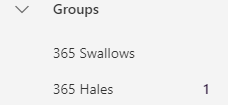
To remove yourself from a group:
- Go to the staff page and log in to your emails.
- On the left-hand side you have a list of options including Favourites, Folders and Groups. Click the little arrow next to ‘Groups’.
- Click on the group you no longer want to be part of and click big circle next to the group name in the middle column.
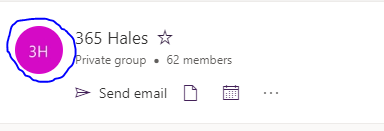
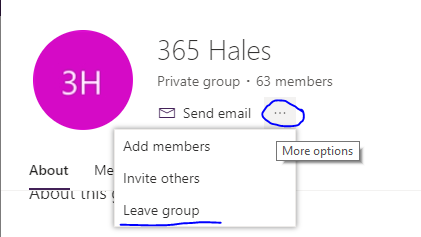
- Press the 3 dots and choose leave group.