

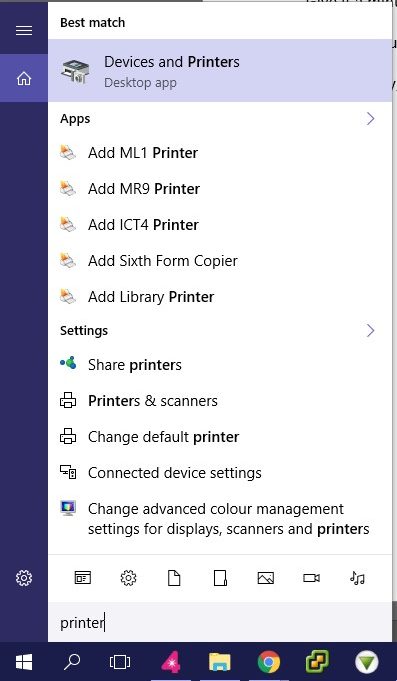
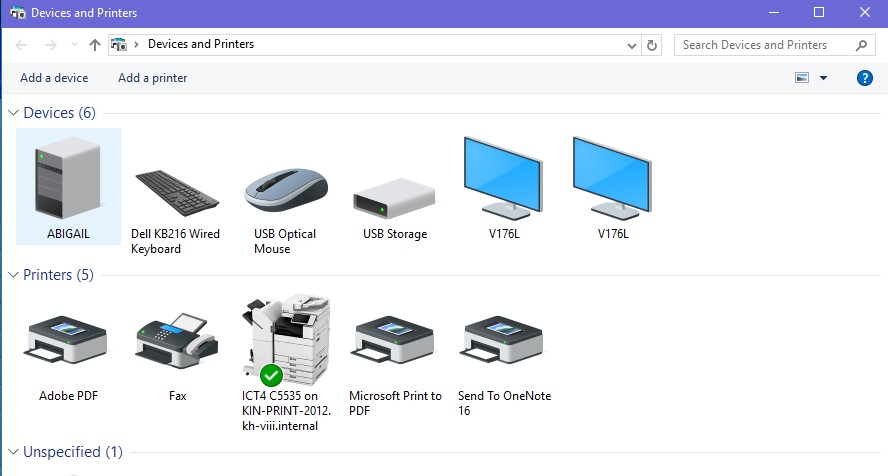
Go to magnifying glass on task bar and type printer. Choose ‘Devices and Printers’
If you are having the issue there will be no green tick overlay on any printer.
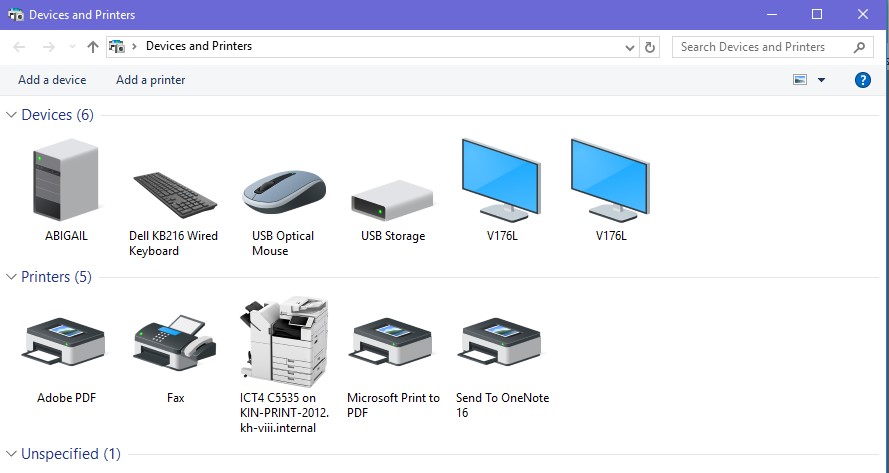
If there is a green tick, please contact IT Support as you are having a different problem.
If there is no green tick, right click on the default printer (when you right click, ‘Set as default printer’ will have a tick next to it) and choose ‘Remove device’. The printer will disappear.
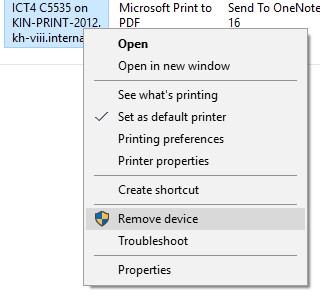
Now you need to get it back.
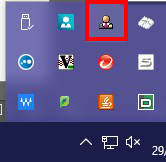
Click on the little person icon by the clock on the bar at the bottom of the screen.

If you are unable to see the icon, click on the small up arrow instead.

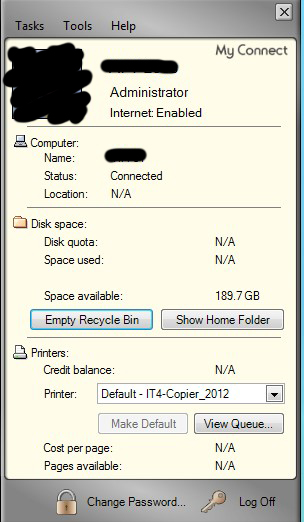
Now click on the person icon to see My connect window
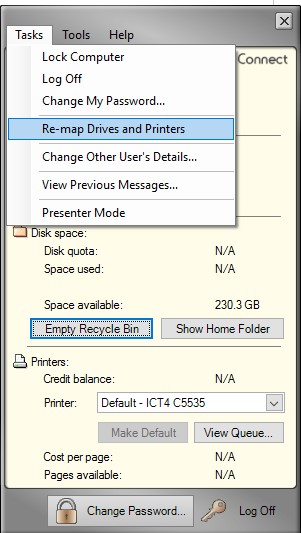
Once open, click on the Tasks Menu
And then choose re-map Drives and printers.
Your printer will re-appear in ‘Devices and Printers’ with a green tick.
If after this you still have issues, please contact IT Support for further help.